Introduction
Eaton’s Machine Configurator is a Microsoft® Windows®-based software that helps manage Eaton configuration tools such as Power Xpert inControl, XSOFT-CODESYS, and Galileo. This guide provides instructions on how to use Machine Configurator to install, uninstall, launch, and update these tools from your laptop/desktop.
Cybersecurity is at the core of Eaton’s “secure by design” philosophy. Our secure development approach helps us manage cybersecurity risks in our products through the entire product life cycle—from threat modeling, requirements analysis implementation and verification, to ongoing maintenance. Machine Configurator has been tested by an authorized UL® cybersecurity test lab, following industry established frameworks and standards. Eaton’s Cybersecurity Center of Excellence (CCoE) is committed to ensuring our customers are aware of the importance of continuing to review, implement, and maintain recommended cybersecurity best practices.
Disclaimer
DISCLAIMER OF WARRANTIES AND LIMITATION OF LIABILITY
The information, recommendations, descriptions and safety notations in this document are based on Eaton Corporation’s (“Eaton”) experience and judgment and may not cover all contingencies. If further information is required, an Eaton sales office should be consulted. Sale of the product shown in this literature is subject to the terms and conditions outlined in appropriate Eaton selling policies or other contractual agreement between Eaton and the purchaser.
THERE ARE NO UNDERSTANDINGS, AGREEMENTS, WARRANTIES, EXPRESSED OR IMPLIED, INCLUDING WARRANTIES OF FITNESS FOR A PARTICULAR PURPOSE OR MERCHANTABILITY, OTHER THAN THOSE SPECIFICALLY SET OUT IN ANY EXISTING CONTRACT BETWEEN THE PARTIES. ANY SUCH CONTRACT STATES THE ENTIRE OBLIGATION OF EATON. THE CONTENTS OF THIS DOCUMENT SHALL NOT BECOME PART OF OR MODIFY ANY CONTRACT BETWEEN THE PARTIES.
In no event will Eaton be responsible to the purchaser or user in contract, in tort (including negligence), strict liability or other-wise for any special, indirect, incidental or consequential damage or loss whatsoever, including but not limited to damage or loss of use of equipment, plant or power system, cost of capital, loss of power, additional expenses in the use of existing power facilities, or claims against the purchaser or user by its customers resulting from the use of the information, recommendations and descriptions contained herein. The information contained in this manual is subject to change without notice.
System Requirements
- Software: Microsoft Windows 10 or 11 (32-bit or 64-bit)
- Screen resolution: 1280x1024 pixels or higher resolution
Account Management
User registration
Before you can use and log into Machine Configurator, you need to be registered.
- Click Register Now! to begin.
- You will be re-directed to the Registration page.
- Follow the online instructions to complete your registration.
Login
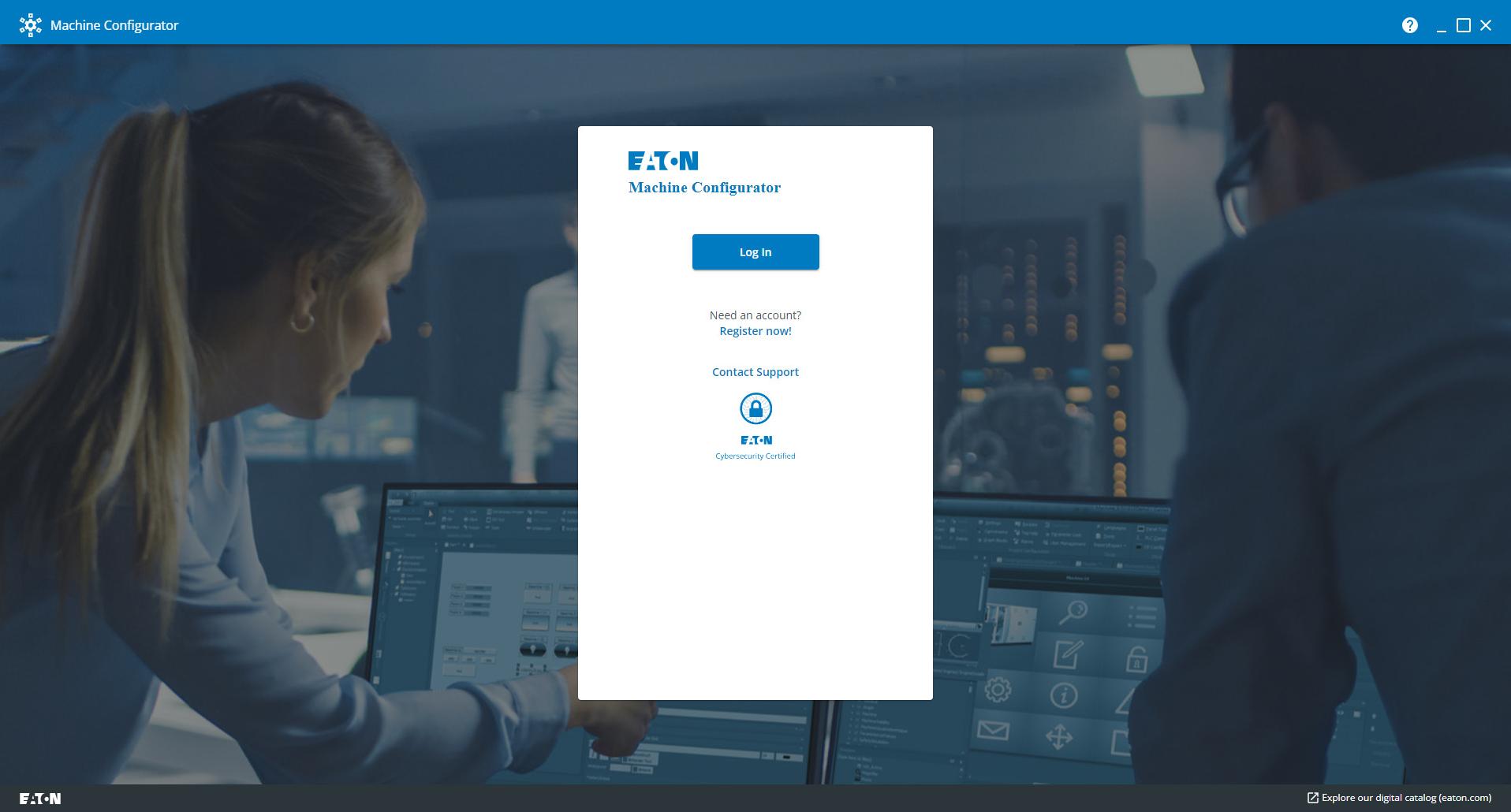
After you have completed registration, click Log In on the Machine Configurator window.
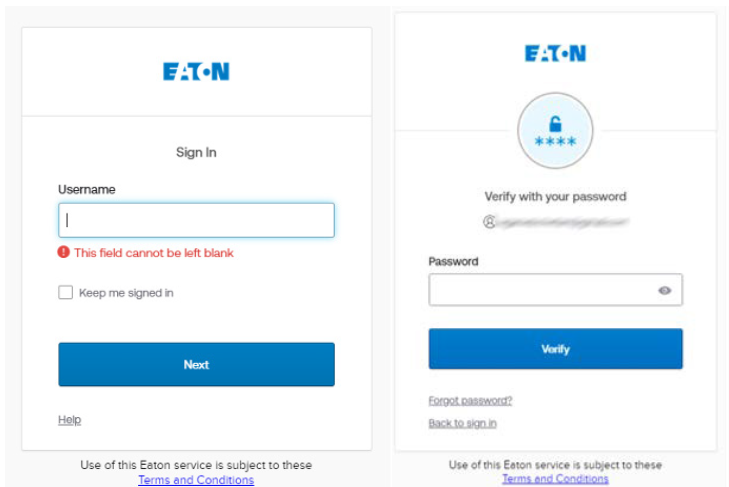
Sign In
- On the Sign In page, enter your Username and click Next.
- Enter your Password and click Verify.
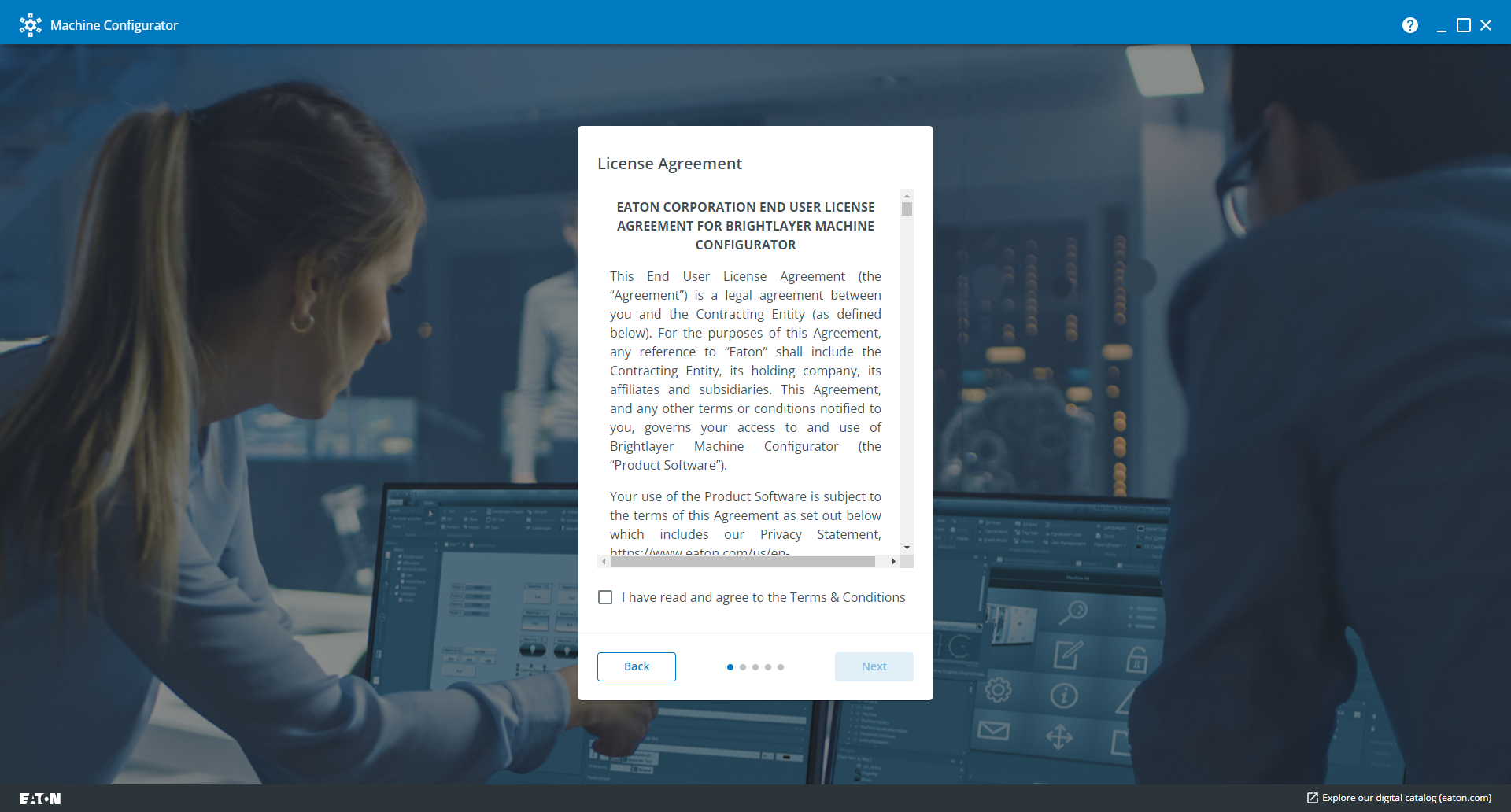
- Confirm End User License Agreement and click Next.
My Account
- Click the user icon in the upper right side of the blue bar.
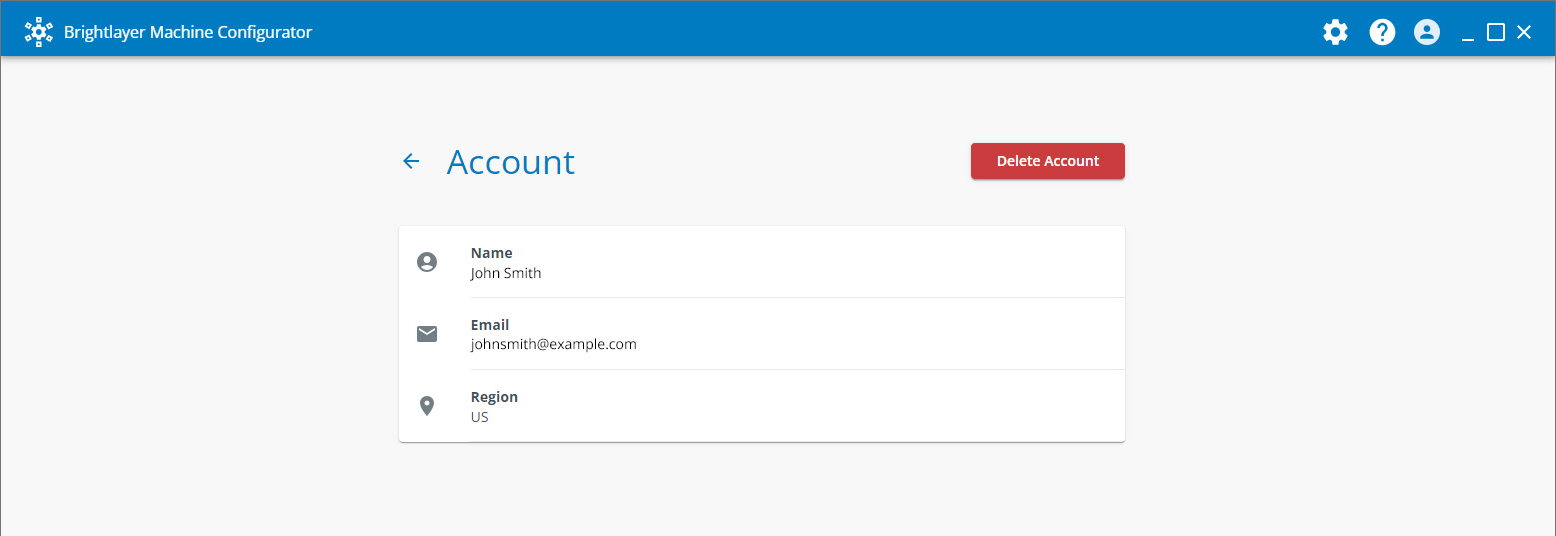
- Click My Account to access your account details.

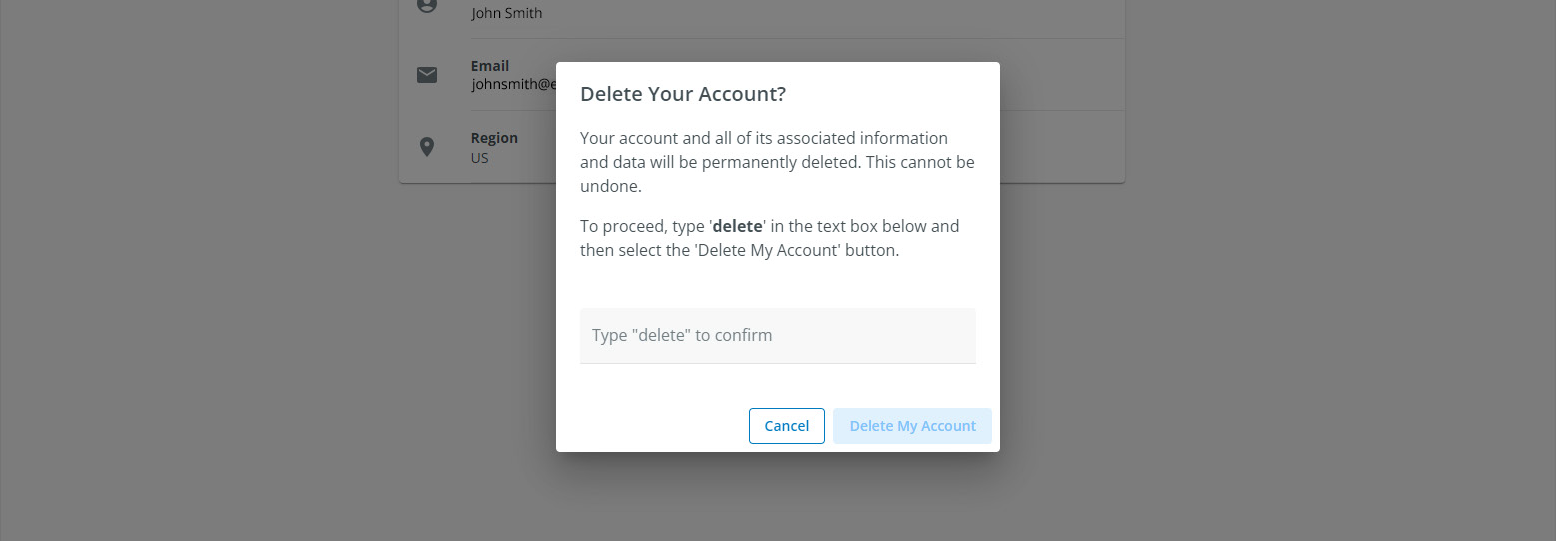
Users can delete their account from here by clicking Delete Account and following the screen prompts.
Change Password
- Click the user icon in the upper right side of the blue bar.
- Click Change Password to launch the Reset Password window.
- Enter your email address and click Reset via Email.
- Follow the online instructions to change the password.

Log out
- Click the user icon in the upper right side of the blue bar.
- Select Log out from the dropdown menu to exit the portal.

Using Machine Configurator
Home screen
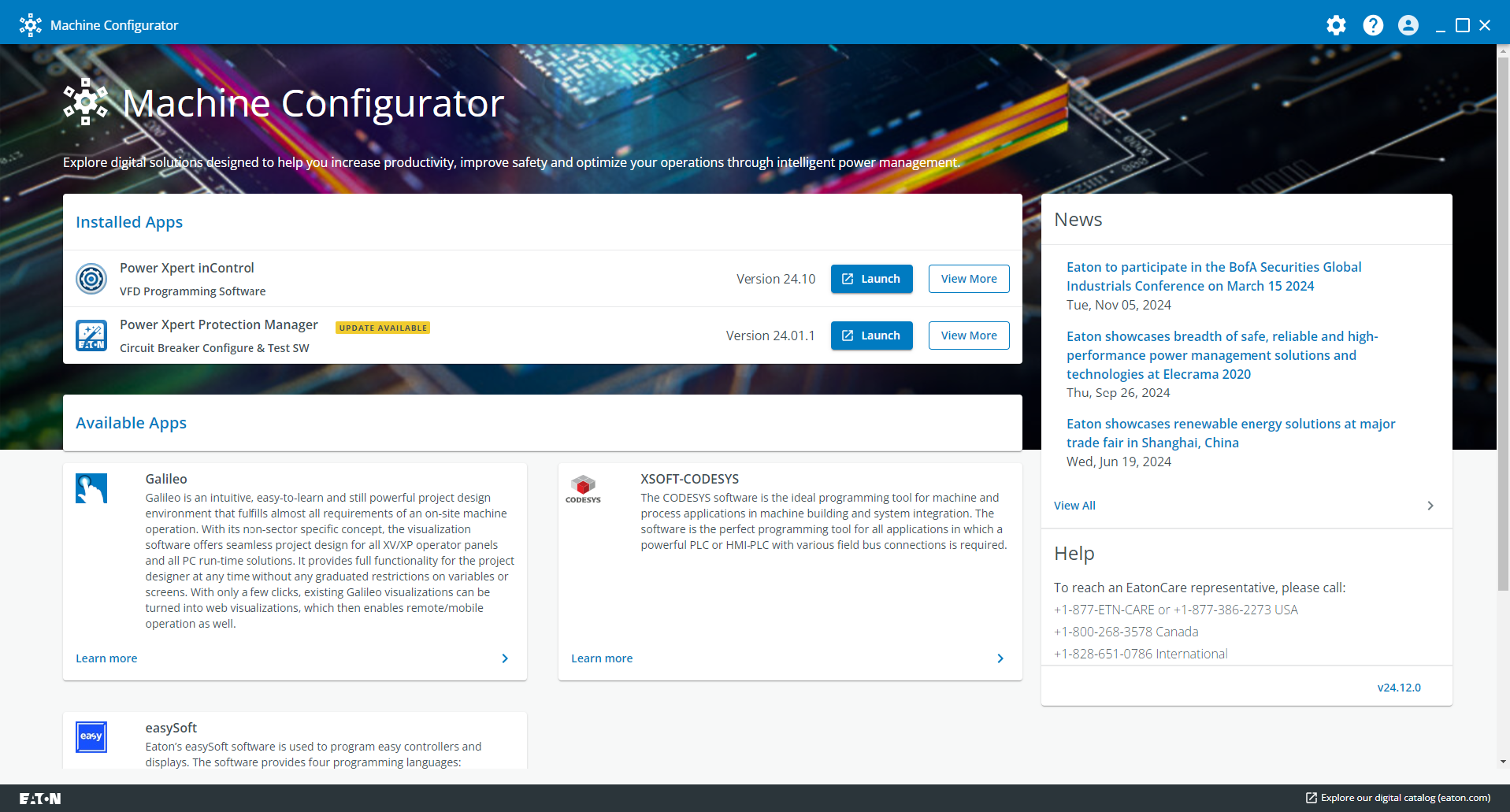
Machine Configurator provides several features to manage different configuration tools.
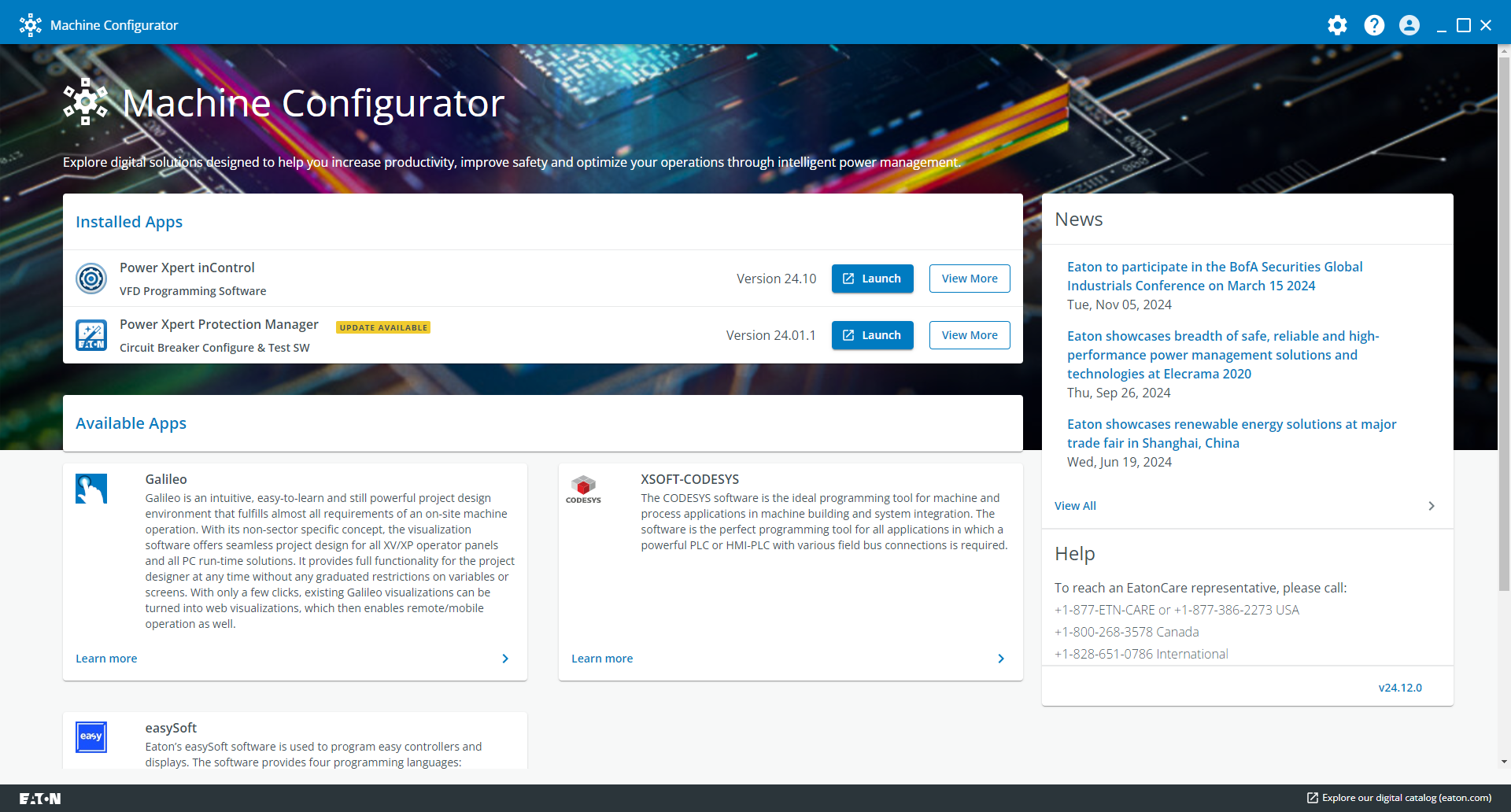
The home screen has three main sections:
- Installed Apps
- Available Apps
- News
Installed Apps
Machine Configurator will search for the applications installed on the laptop/desktop.
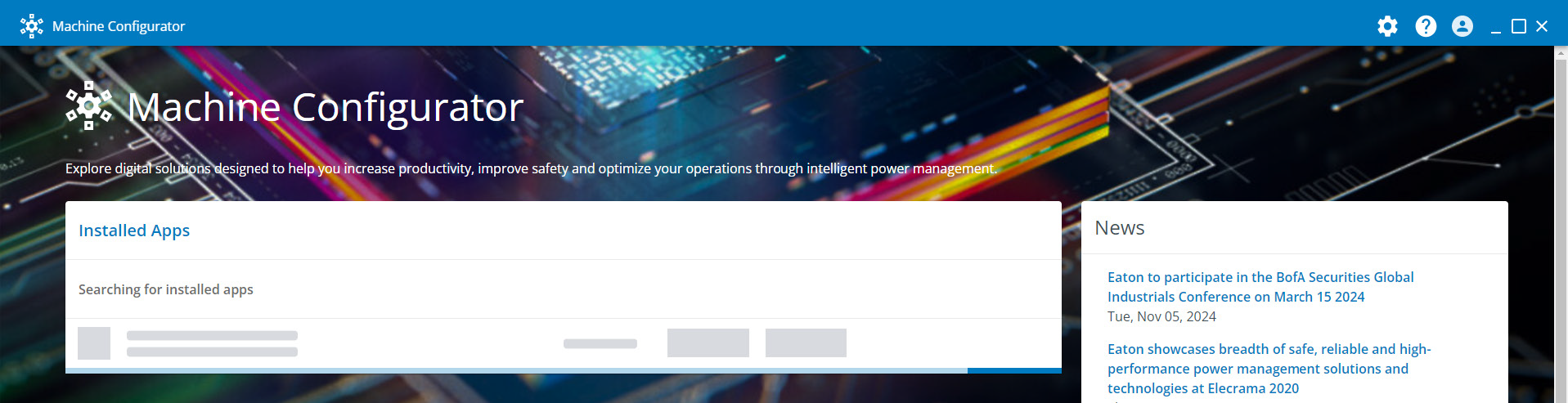
After the search is complete, all installed applications and their respective versions will be displayed in the Installed Apps section. If you have not installed an app yet, go to Available Apps to choose which apps to install.
Note: See Supported Applications for more information about all of Eaton’s applications.
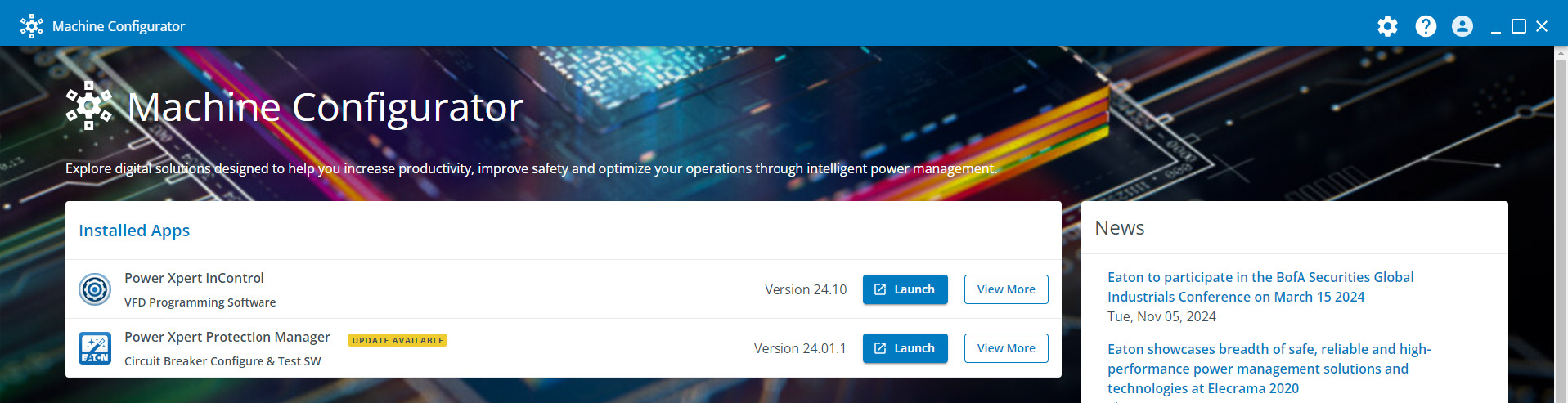
Once you have installed an app you can click Launch to run it, or View More to navigate to its page. See Product Details for more.
Choose the application you want to install and click Launch.
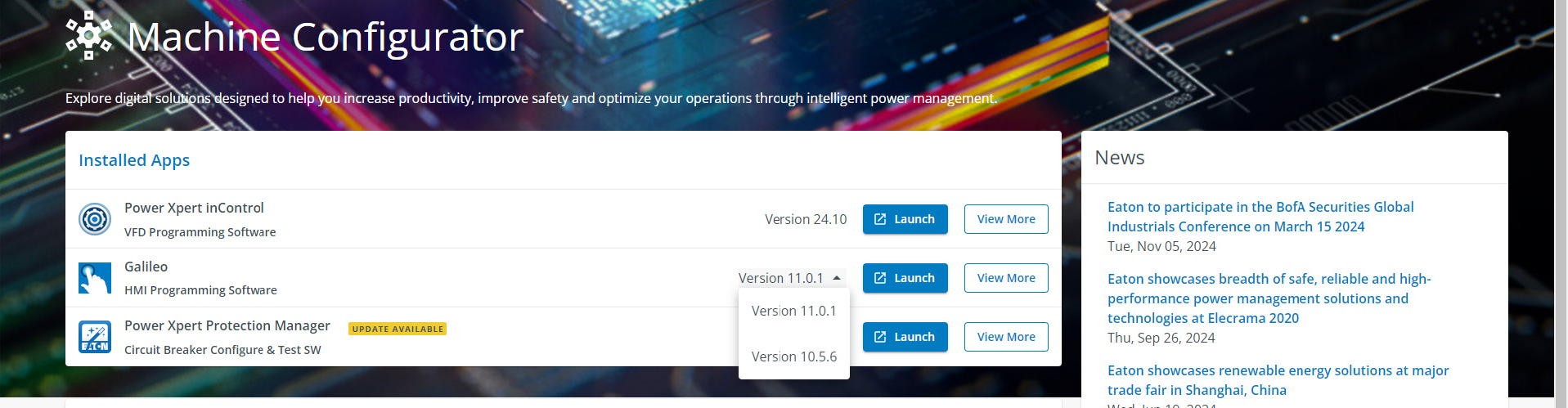
If you have installed multiple versions of the application, select the version you want from the dropdown options and then click Launch.
Available Apps
Applications that are available to install and update are listed in Available Apps section. Select Learn More to display additional information about the application. See Product Details for more.
Product Details
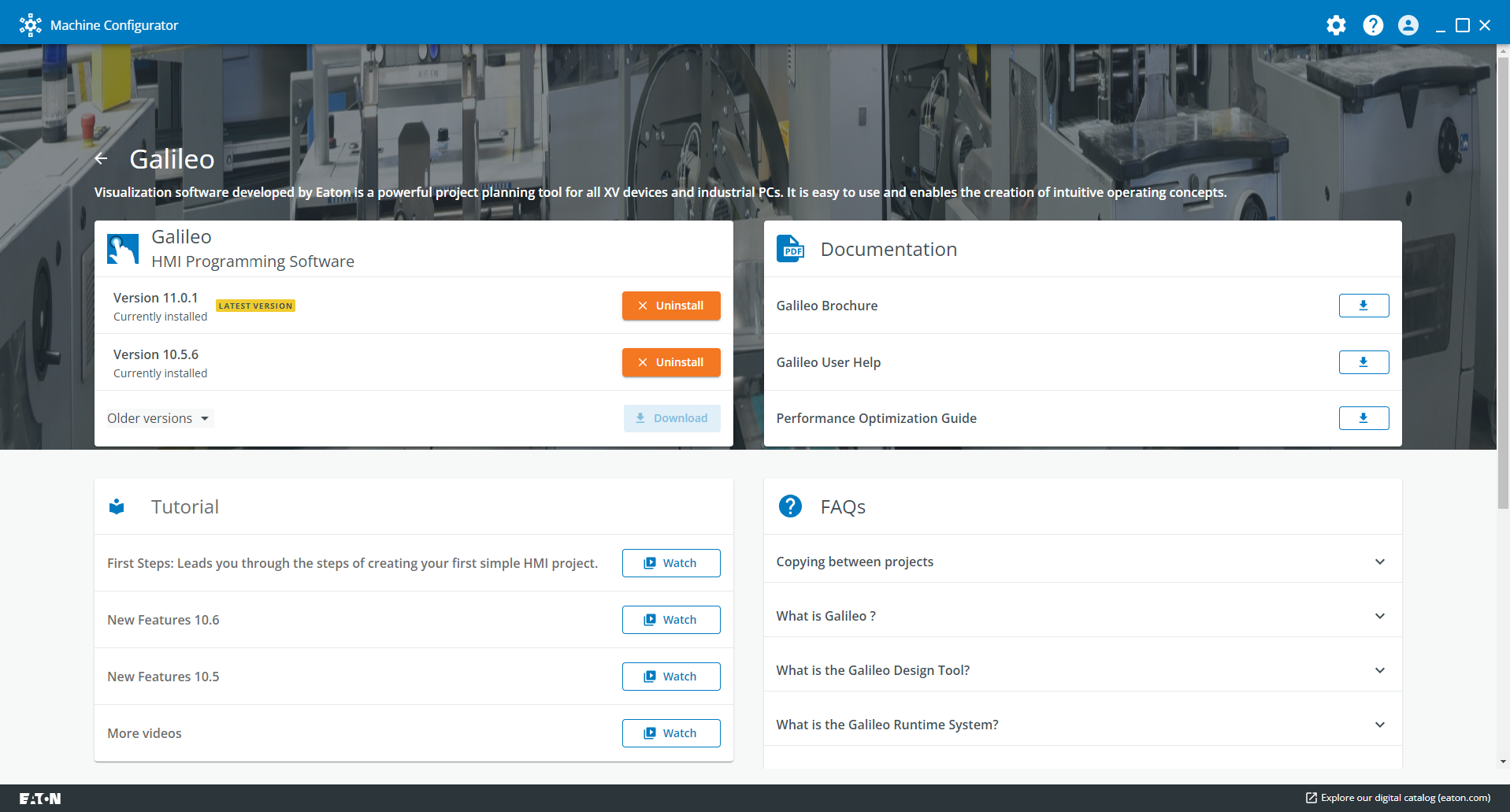
The product details pages will offer most if not all of the following:
- All available versions of the software for downloading;
- Documentation providing resources and product support that can be downloaded and the required links to useful information to assist the user in effectively operating and using the application;
- Tutorials offering learning videos and other instructional aids to help the user become more proficient with the application;
- Finally the FAQs providing quick and easy access to helpful information and the answers to the most relevant questions.
If a new version is available and it is not installed on the system, an UPDATE AVAILABLE tag is displayed.

Downloading software
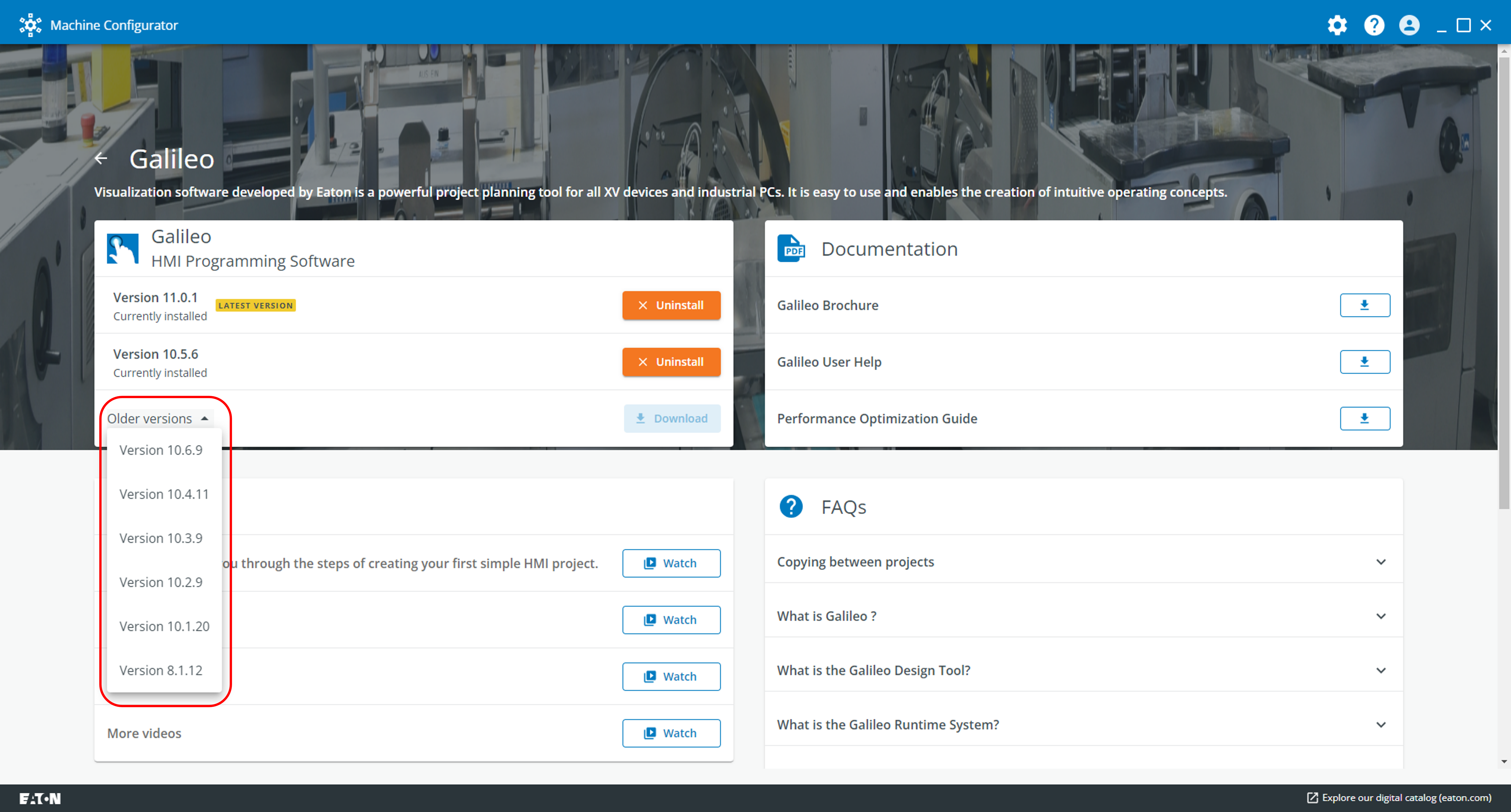
Click Download to install software.

To install an older version, select an option from the Older versions dropdown menu.
News
The News section lists all the latest updates from Eaton, including application updates and new releases.
The Help section can be used for customer support information.
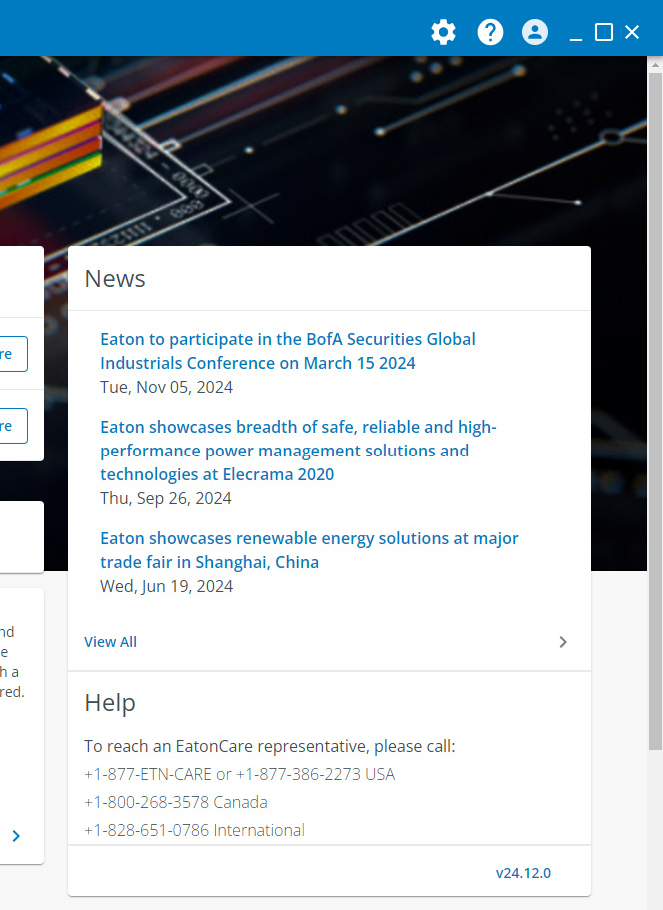
Click View All to see all stories.

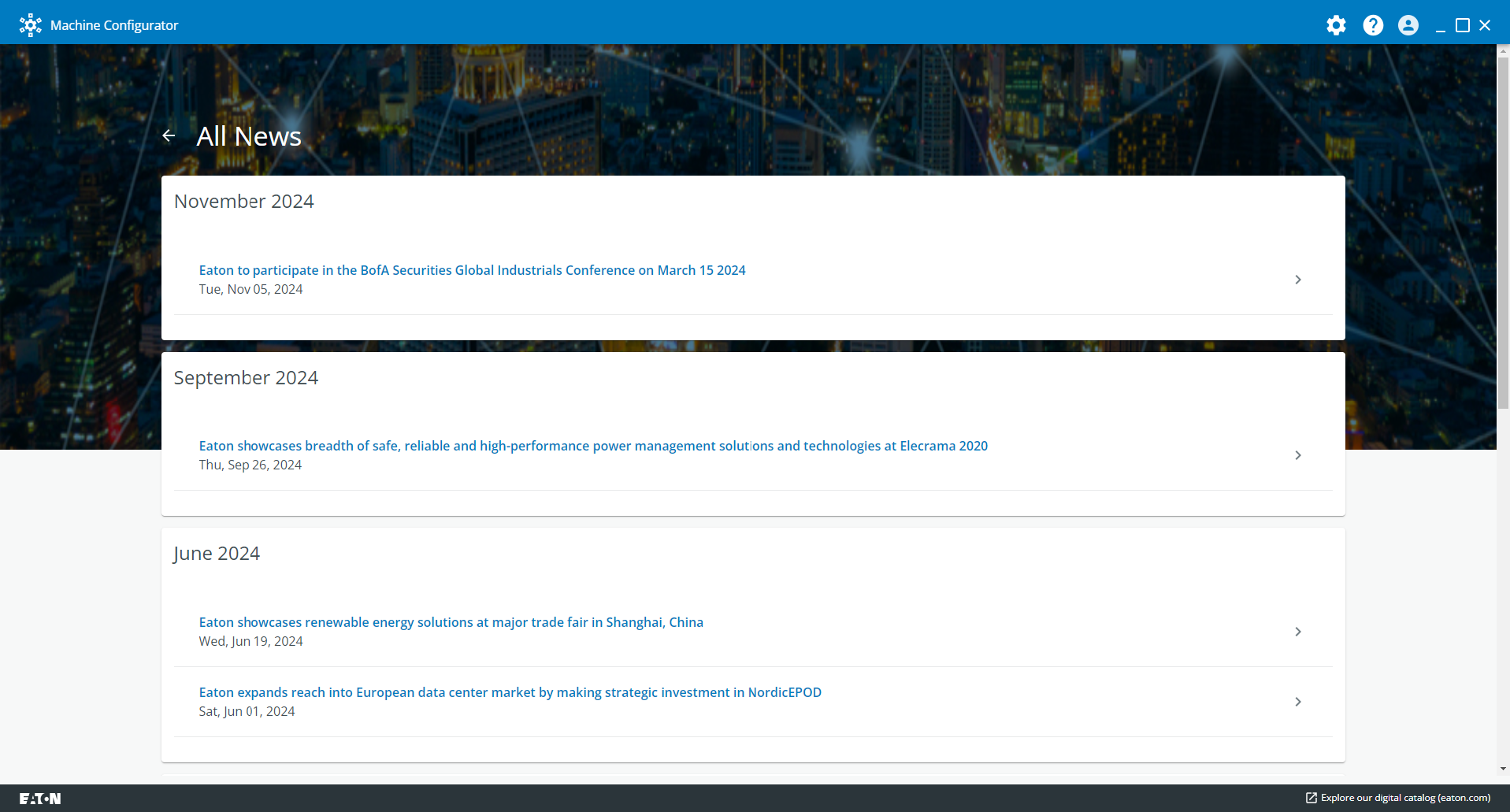
Click on a headline to display the entire content.

Settings
Machine Configurator offers three system settings to enhance the user experience.
Click the gear icon located at the top right.
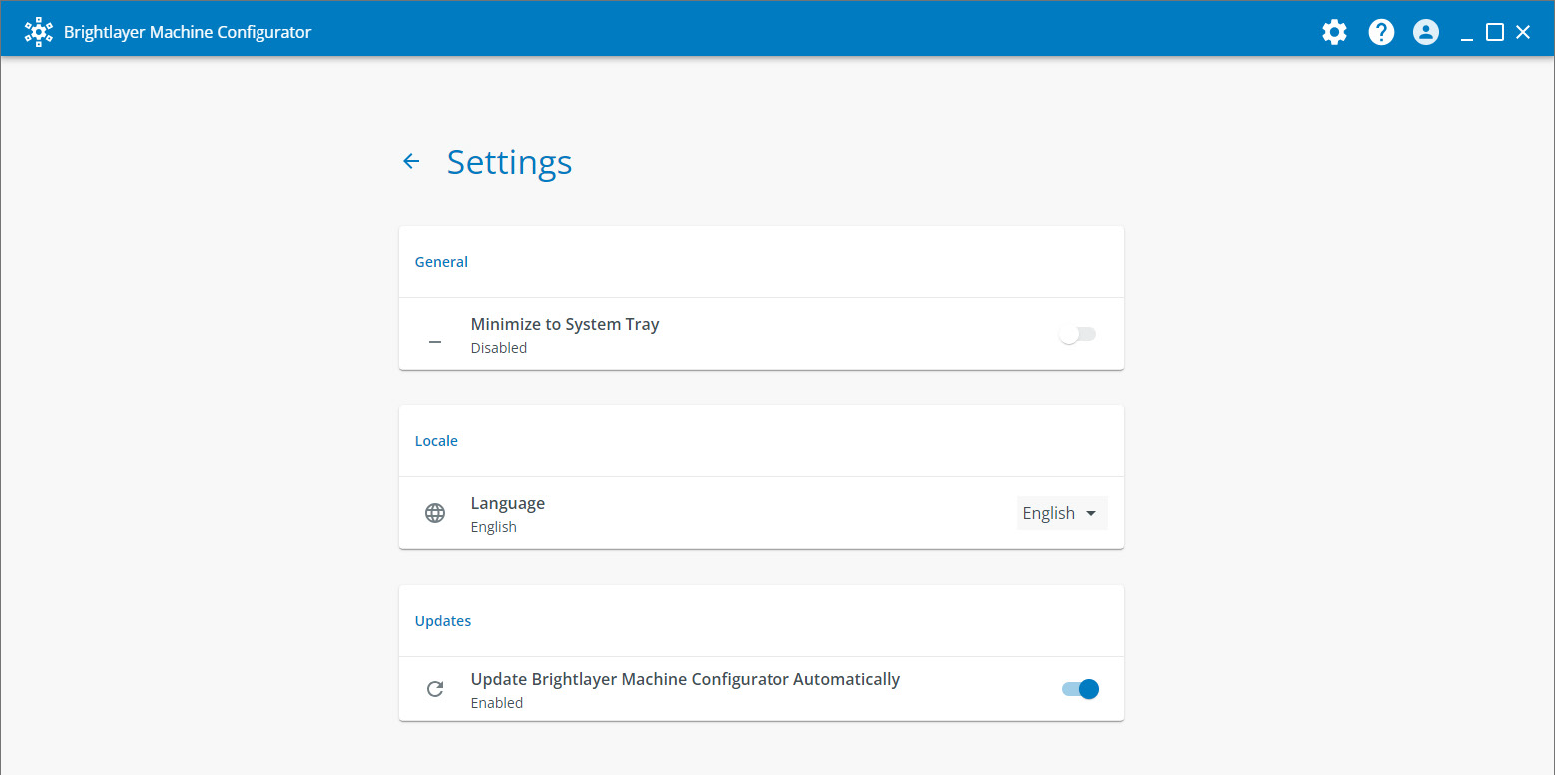
General
Minimize to System Tray
When this setting is turned on, the application will continue to run in the background instead of closing completely. You can relaunch the application by using the system tray icon.

Locale
Language
This setting allows you to choose the preferred language of the tool. Once you select the desired language, all the text and various elements will be displayed in that specific language. All languages other than English are sample texts and are marked as BETA. Valid translations for respective languages will be provided in future updates and the BETA tag will be removed.

Updates
Update Machine Configurator Automatically
This setting enables the Machine Configurator application to be updated automatically when the latest version becomes

About
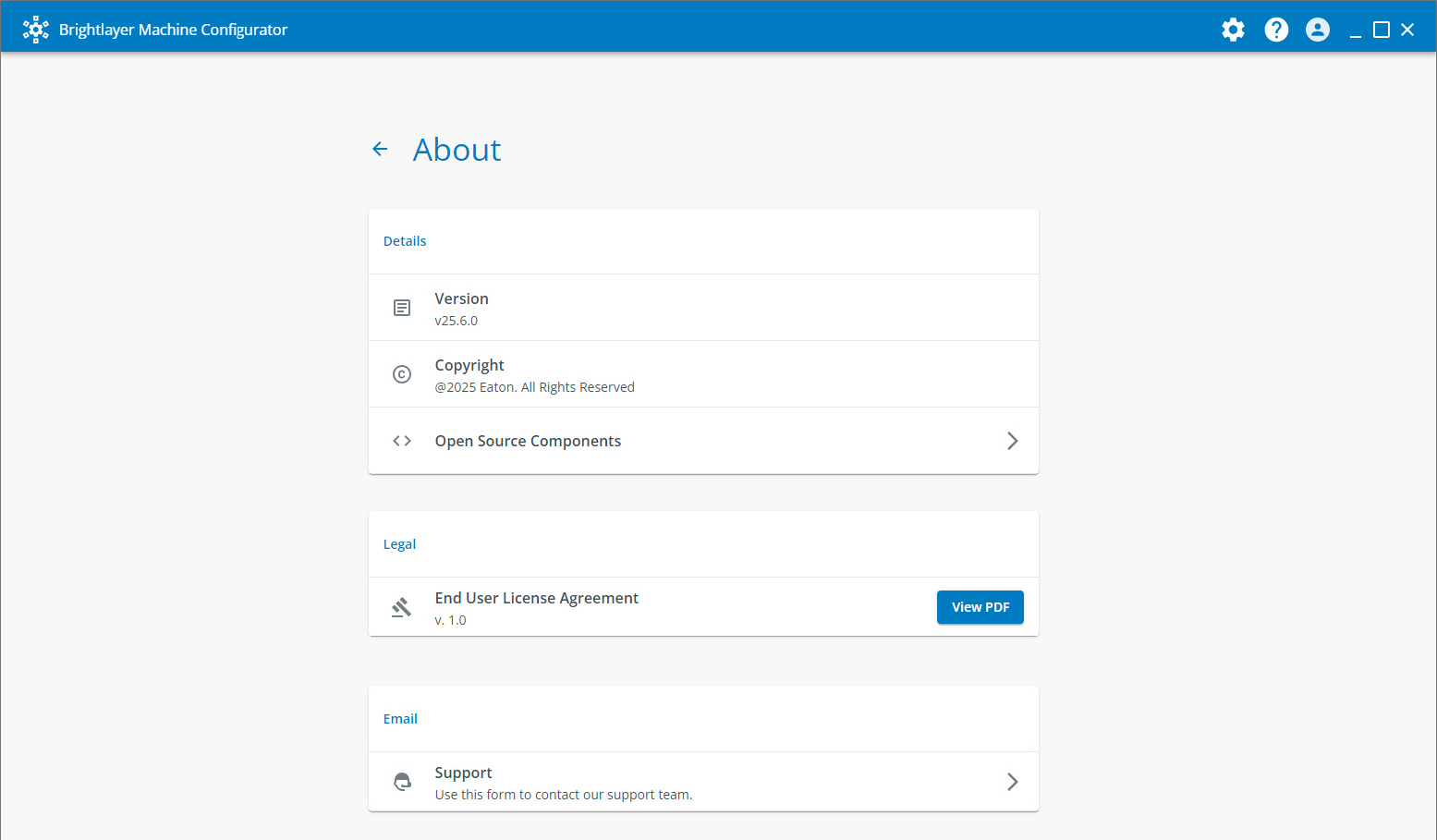
This screen allows user to access various details of the application. Each section is explained below.
Details
Version
Displays the current version installed.

Copyright

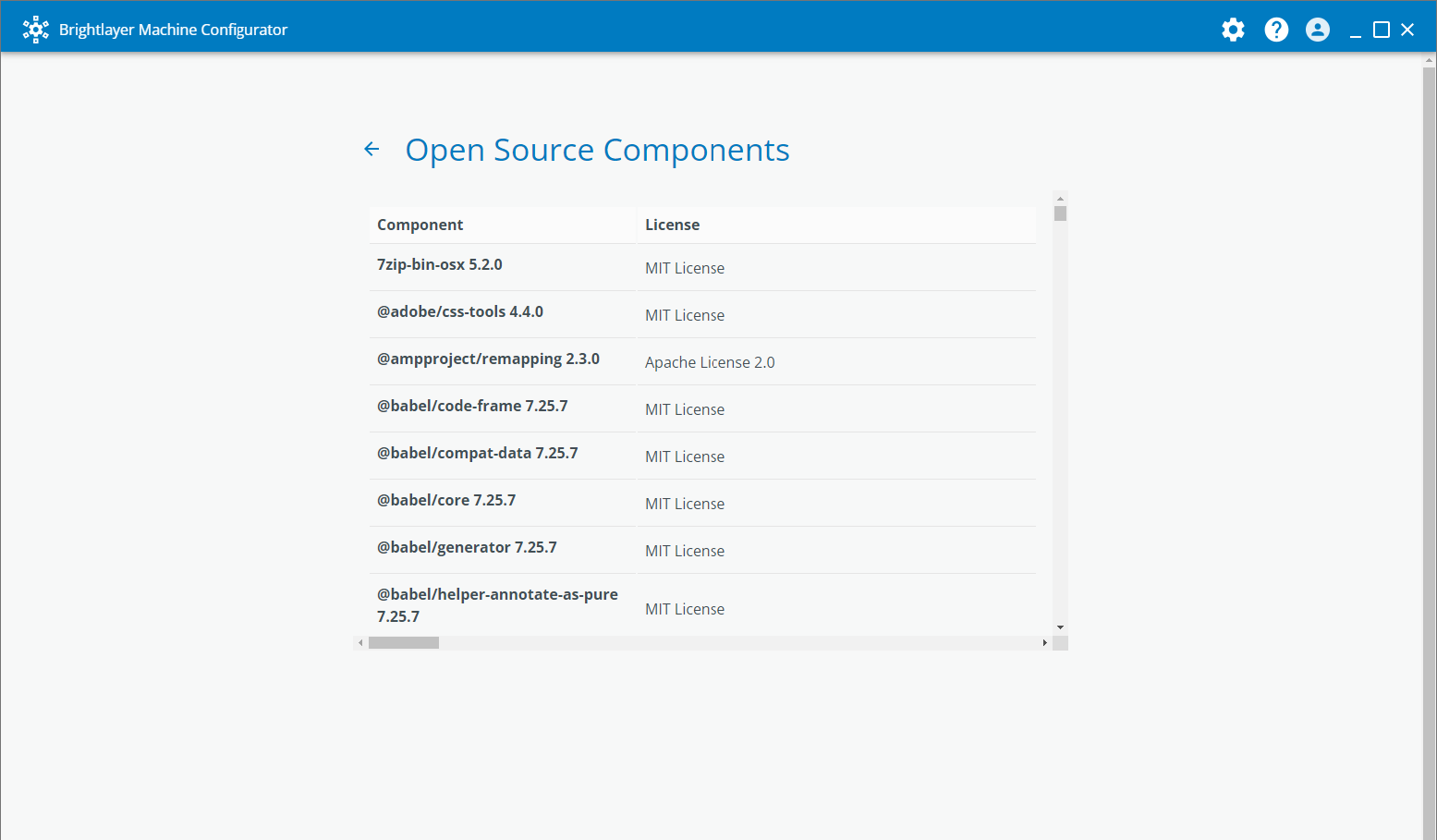
Open Source Components
Click to view a list of all Open Source Components used within the application stack.

Legal
End User License Agreement
Click to view a PDF version of the end user license agreement.

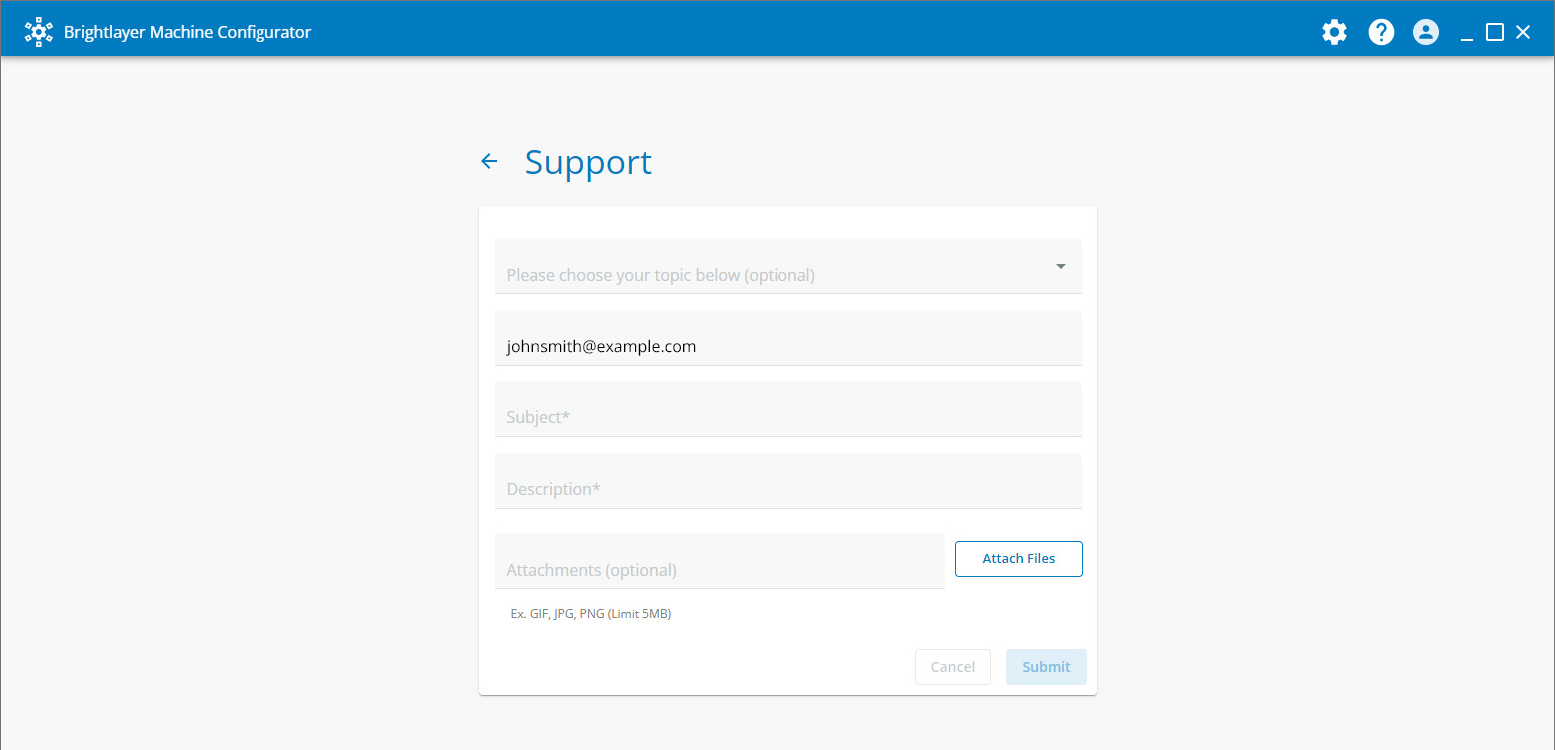
Support
Click to access a support form to allow users to submit observations, suggestions or issues to our support team. Users can also attach screenshots to help communicate their message.
Note: User email will be automatically populated based on account details.

Supported Applications
Machine Configurator supports the following Eaton applications. On availability of the newest version of an application, Machine Configurator will show the details in the product specific page and display the update the available tag.

Power Xpert inControl
Power Xpert inControl device configuration and control software makes programming networked drives and soft starters quick and easy. It provides a processor-generic, simple interface for configuration, monitoring, troubleshooting, firmware gradation, and logic editing functionality using communication protocols. Power Xpert inControl software supports the latest version update. An older version on the laptop/desktop can be launched, uninstalled, or updated; however, multiple versions of Power Xpert inControl cannot be installed on the same laptop/desktop. For more information, please visit Eaton’s Power Xpert inControl configuration software webpage.
XSOFT-CODESYS
XSOFT-CODESYS software is the ideal programming tool for machine and process applications in machine building and system integration. The software is the perfect solution for all applications in which a powerful PLC or HMI-PLC with various field bus connections is required.
XSOFT-CODESYS supports the installation of multiple software versions on the same system and all versions can be managed on the laptop/desktop.
For more information, visit Eaton’s XSOFTCODESYS programming software webpage.
Galileo
Galileo is an intuitive, easy-to-learn and powerful project design environment that fulfills almost all requirements of an on-site machine operation. With its non-sector specific concept, the visualization software offers seamless project design for all XV/XP operator panels and all PC run-time solutions. It provides full functionality for the project designer at any time without any gradation restrictions on variables or screens.
With only a few clicks, existing Galileo visualizations can be turned into web visualizations, which then enables remote/mobile operation as well.
Galileo supports installing multiple versions on the same system. You can manage all the versions installed on the laptop / desktop.
For product specific details, visit Eaton’s Galileo webpage.
Power Xpert Protection Manager
Power Xpert Protection Manager (PXPM) provides a clean, intuitive user interface enabling unmatched control, testing, and troubleshooting. The software is free to download and can run on any PC. Settings and tests are communicated to trip units via USB or through connected networks, no special test equipment is required. Troubleshooting is greatly simplified using historical event summaries and real time data provided by the Power Xpert Release (PXR) trip units, saving customer’s time and money.
Note: Machine Configurator can install PXPM only on system which supports 64-Bit applications. 32-Bit application can be launched and uninstalled, but installation and update is not supported via Machine Configurator application.
For product specific details, please visit Eaton’s Power Xpert Protection Manager webpage.
easySoft
Eaton’s easySoft software is used to program easy controllers and displays. The software provides four programming languages: Structured text (ST), Function block diagram (FBD), Ladder diagram (LD), Easy programming language – event-driven programming (EDP). An integrated offline simulation tool allows users to test programs before commissioning. Existing programs that were created for previous series controllers (easy500/700/800) can be simply transferred to the current easyE4 PLC with automatic conversion using easySoft version 7 or higher.
For product specific details, please visit Eaton’s easySoft software webpage.
Support
To reach an EatonCare representative, please call:
+1-877-ETN-CARE or +1-877-386-2273 (USA)
+1-800-268-3578 (Canada)
+1-828-651-0786 (International)